November 4, 2026
Automated Daily Reports for Home Service Crews: A Practical Guide
Last Updated: November 4, 2026 Quick Summary Automated daily reports are software-generated job logs that pull timecards, photos, weather, and job data into a finished record without a crew member filling out a form by hand. Operations managers who move from manual reporting to automated workflows s
Written by Frankwin Hooglander — Founder & Automation Specialist

Last Updated: November 4, 2026
Quick Summary
Automated daily reports are software-generated job logs that pull timecards, photos, weather, and job data into a finished record without a crew member filling out a form by hand. Operations managers who move from manual reporting to automated workflows save 5 to 8 hours per week.
- A daily report template should be short enough to complete in under three minutes.
- Start with seven core fields and add only what you have used in a dispute.
- Test offline behavior in airplane mode with five photos before you buy.
- Write the log the same day and photograph before and after on every job.
- Hand the app to your least tech-savvy technician and require a log in under three minutes.
Table of Contents
- Why Automated Daily Reports Beat Paper Logs for Home Service Crews
- Daily Report Templates for Contractors: What Every Log Should Capture
- Choosing a Construction Daily Log App for Your Trade
- Jobsite Documentation Best Practices That Hold Up Over Time
- Building an Automated Workflow for Field Crews
- Getting Field Crews to Actually Use the System
- Book a Free Trial and Automate Your First Daily Report
- Frequently Asked Questions
Why Automated Daily Reports Beat Paper Logs for Home Service Crews
Automated daily reports are software-generated job logs that pull timecards, photos, weather, and job data into a finished record without a crew member filling out a form by hand. For home service crews, that shift matters: US Tech Automations' 2026 reporting software roundup found that operations managers who move from manual reporting to automated workflows save 5 to 8 hours per week.
HSP Automation builds workflows for HVAC, plumbing, cleaning, and electrical companies.
Here is what a daily log should capture, how to pick an app, and how to get technicians to use it.
The Real Cost of Manual Reporting
Paper logs cost more than the paper.
The errors compound. Handwritten labor hours get transcribed wrong, which means payroll disputes. Missing photos mean warranty claims you cannot defend. DataGrid's guide to construction daily reports notes that AI agents now assemble daily reports by pulling manpower, equipment, weather, and delivery data captured throughout the workday, which removes the transcription step entirely.
To quantify the gap before you commit, our breakdown of home service business automation costs walks through what manual processes and their replacements actually run.
What Changes When Reports Write Themselves
The report stops being a memory test and becomes a byproduct of work already done. A technician clocks in on a phone, attaches two photos, and taps a labor description. The system handles the rest.
- Disputes get shorter. Timestamped photos and verified hours settle arguments in minutes.
- Payroll stops waiting. Labor hours flow to accounting without a re-entry step.
- Managers get their evenings back. No one stays late to type up logs.
The catch is adoption. Software that saves the office 8 hours but adds 10 minutes of friction to a technician's day will fail.
Daily Report Templates for Contractors: What Every Log Should Capture
A daily report template for contractors is a fixed set of fields capturing who worked, what they did, where, and under what conditions. It should be short enough to complete in under three minutes and complete enough to survive a legal review.
Every log needs these fields:
| Field | Why It Matters | Capture Method |
|---|---|---|
| Manpower counts | Payroll accuracy, productivity tracking | Digital timecards |
| Labor hours by task | Job costing, change orders | Timecard-to-task mapping |
| Site conditions and weather | Delay claims, safety documentation | Automatic weather pull |
| Photo documentation | Warranty defense, progress proof | Mobile camera upload |
| Equipment on site | Use, rental billing | Crew entry or asset tag |
| Visitor and subcontractor log | Compliance documentation | Sign-in form |
| Delays and issues | Change order support | Voice or text note |
The mistake we see most is a 40-field template nobody fills out. Start with seven fields, add only what you have used in a dispute.
How Each Field Should Actually Be Captured
The table above tells you what to collect. The harder question is how each field gets filled without adding taps to a technician's day.
Manpower counts. Pull these from the timecard, not a separate headcount form. When a technician clocks in on the job, the count is a byproduct.
Site conditions and weather. Do not ask the crew to describe the weather.
Photo documentation. Two photos per job, before and after, attached to the job record rather than texted to a supervisor. Photos in a text thread disappear when the phone is replaced; photos attached to the job record survive.
Equipment on site. Either the crew scans an asset tag or selects from a list of equipment assigned to the job.
Delays and issues. Voice-to-text is the fastest capture method, because a technician will talk for 30 seconds about a delay but will not type a paragraph.
Adjust the Template by Trade
The seven core fields hold across trades, but the emphasis shifts.
- HVAC and plumbing. Refrigerant and parts usage belong on the log. Add a parts-used field tied to the work order.
- Electrical. Panel and circuit references matter more than equipment counts. Add a field for the panel and breaker location so the next technician can find the work.
- Cleaning. Room-level completion and supply usage replace equipment tracking. A photo per room is often the whole log.
What to Leave Out
Every field you add is a field a tired technician will skip. Streamlining these data requirements allows the crew to focus on the job at hand, while automating customer follow-up ensures that the necessary post-service communication happens without burdening the technician with manual entry.
Watch out: a template that grows every time something goes wrong will collapse under its own weight within a season. Review the field list quarterly and delete anything unused in a dispute or job-cost review.
Choosing a Construction Daily Log App for Your Trade
The best construction daily log app is the one your crew will open without being reminded. Feature lists matter less than three things: mobile speed, offline behavior, and how the data leaves the app.
Here is how the main options compare for daily reporting:
| Tool | Starting Price | Best For | Standout Feature |
|---|---|---|---|
| Housecall Pro | $59/month | Residential service contractors | Digital forms and GPS dispatch |
| Jobber | $50/month | Small to mid-sized operations | Field-to-office data syncing |
| Raken | Contact for pricing | Detailed compliant logs | Voice-to-text daily notes |
| SmartBarrel | Contact for pricing | Precise labor tracking | Verified headcount |
| Contractor Foreman | Contact for pricing | Budget-conscious crews | Offline mode, timecard-linked logs |
| QuoteIQ | $29.99/month | Cleaning and small crews | GPS clock-in, labor costing |
| DataBox | $72/month | Owners tracking KPIs | Automated daily dashboards |
For a deeper side-by-side of capture tools, see our comparison of field data capture apps for contractors.
Test Offline Behavior Before You Trust It
Most app comparisons assume a strong connection. Home service crews work in basements, crawlspaces, rural lots, and metal buildings where the signal drops. Offline-first reporting, the app stores entries on the device and syncs when a connection returns, is the single requirement that decides whether a crew can report at all.
Test it in five minutes before you buy. Put the phone in airplane mode, fill out a complete log, force-close the app, reopen it, and restore the connection. Then check three things: did every field survive, did the photos upload, and did the timestamp reflect when the work happened rather than when the sync happened? If anything is missing or the timestamp shifts, the tool is online-only with a cache, not offline-first.
A common pattern is that apps handle offline text well but fail on photos, queuing them silently and dropping them when storage runs low. Test with five photos, not one.
Check How Data Leaves the App
The report is only valuable if it reaches your books. Labor hours that stop at the reporting app create a second data entry job, defeating the purpose. Before you commit, ask three questions:
- Does it push verified hours to payroll natively, or only export a CSV? A CSV export is still a manual step, and manual steps are where transcription errors enter.
- Does it connect to your accounting platform? Native QuickBooks connections are common; connections to niche trade software are not. Confirm yours is on the list.
- Does it write back to the job record? Photos and notes should land on the customer and job record, not in a separate reporting silo that the office has to reconcile.
Our API and third-party integrations cover QuickBooks, Housecall Pro, and thousands of other apps so reports land where the money is tracked.
Match the App to Your Trade and Crew Size
Feature fit matters more than brand recognition. A few patterns hold across trades:
- Residential service (HVAC, plumbing, electrical). You need dispatch, timecards, and invoicing in one place more than you need a formal daily log.
- Cleaning and small crews. GPS clock-in and simple labor costing carry the day. QuoteIQ's lower entry price fits crews that do not need dispatch depth.
- Larger field operations with compliance exposure. Detailed, defensible logs with voice-to-text notes and verified headcount justify the higher tiers.
- Budget-conscious crews that still need offline mode. Contractor Foreman is the usual starting point, though the interface is less polished than the leaders.
The Adoption Test
Before you sign a contract, hand the app to your least tech-savvy technician and watch them complete one log without help. If they finish in under three minutes, the app will survive the season. If they need a walkthrough, the office will end up filling in the logs, and you will have paid for software that recreates the paper problem. Our guide to contractor crew communication tools covers what keeps teams connected during the transition.
Jobsite Documentation Best Practices That Hold Up Over Time
Jobsite documentation best practices are the habits that make a log useful six months later, when a customer disputes a charge or an insurer asks what happened. Consistency beats detail.
Four rules carry most of the weight:
- Write the log the same day. Same-day entries are accurate; next-week entries are fiction.
- Photograph before and after. Two photos per job, every job, no exceptions.
- Log conditions, not opinions. "Rain from 2 to 4 p.m.," not "bad weather."
- Close the loop on delays. Every delay note names a cause and who was notified.
SmartBarrel's review of daily report apps points out that the strongest tools generate reports directly from field timecards, capturing crew mix, labor performed, visitor logs, equipment usage, and delay hours in one pass. That is the standard to hold your process to.
Building an Automated Workflow for Field Crews
An automated workflow for field crews connects the tools you already pay for so data moves without a human carrying it. The build is less about software and more about deciding which handoffs to delete.
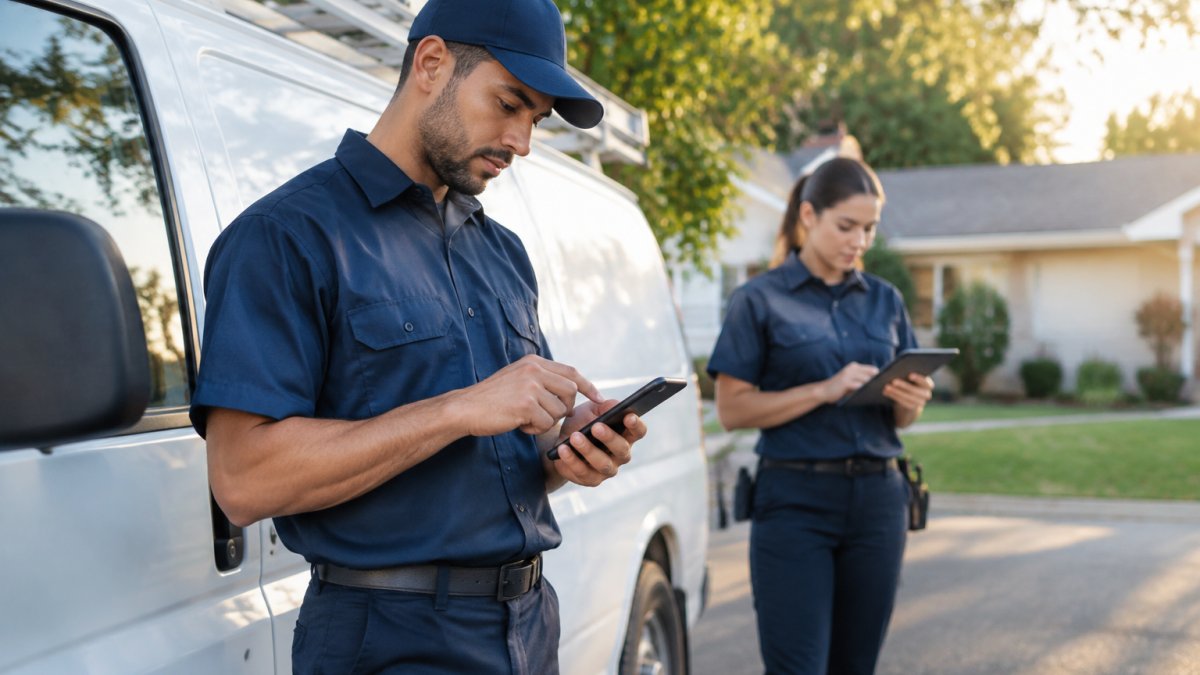
Start with the handoffs that hurt most. Timecard to payroll. Job completion to invoice. Photo upload to customer record. Each one you automate is a place errors stop entering your books.
If you would rather not build this yourself, our workflow automation service connects your scheduling, invoicing, and CRM tools with custom Zapier workflows.
Offline-First: Reporting Where There Is No Signal
Test it before you buy. Put the phone in airplane mode, fill out a log, close the app, reopen it, and restore the connection. If anything is missing, the tool is not offline-first, it is online-only with a cache.
Connecting Reports to Payroll and Accounting
Look for native connections to your accounting platform, or an integration layer that pushes verified hours into payroll and invoices. Our API and third-party integrations cover QuickBooks, Housecall Pro, and thousands of other apps so reports land where the money is tracked.
Getting Field Crews to Actually Use the System
Adoption is a change management problem, not a software problem. Crews resist reporting when it feels like surveillance or when it adds time to a long day.
What tends to work:
- Explain the payoff in their terms. Faster paychecks, fewer callbacks, no Friday paperwork.
- Train by role. Technicians learn the phone flow; supervisors learn the review dashboard.
- Name a champion on each crew. Peer instruction beats a memo from the office.
- Fix friction fast. If a field takes 12 taps, cut it to 4.
Jobber's 2026 home services statistics found that 28% of customers expect an immediate response to inquiries, based on a survey of 1,050 home-service business owners. Crews that report in real time can meet that expectation; crews filling out paper at 7 p.m. cannot.
For help with the human side, our comparison of contractor crew communication tools covers what keeps teams connected during the transition.
Book a Free Trial and Automate Your First Daily Report
The gap between a paper log and an automated one is not technology. It is one afternoon of setup and a crew willing to try.
HSP Automation builds custom automation for home service businesses, including Housecall Pro integrations with 13 triggers and 49 actions, role-based training workshops, and custom SOP documentation. Clients rate us 4.9 out of 5 across 47 reviews.
Book an appointment with HSP Automation to get started, and see how a free trial can fit your crew's reporting.
Frequently Asked Questions
What information should be included in a daily field service report?
A useful daily log captures manpower counts, labor hours, equipment used, materials delivered, weather and site conditions, work completed, delays, and photos of progress. Digital timecards can pull much of this automatically, so crews only add notes and exceptions. Include a signature field for the superintendent or crew lead so the record stands up if a dispute arises later. Keep the template to one screen on mobile; longer forms get skipped.
How much time can automated daily reports actually save?
Automated reporting can reduce time spent retyping notes, chasing crew leads for sign-offs, and assembling summaries by hand. For a small HVAC or plumbing company, that time can be redirected to dispatch, quoting, or follow-up. Pair the reporting automation with a scheduling tool and the savings compound across the week.
How do you ensure field crews actually submit daily reports?
Make submission the path of least resistance. Set automated reminders that fire at the end of each job, keep the form short enough to finish in two minutes, and let technicians use voice-to-text instead of typing. Tie the log to timecards so it closes out with the shift. Role-based training and written SOPs help, and a quick weekly review of who submitted on time keeps the habit alive. Change management matters more than the software choice.
Can automated reporting handle offline job sites?
Yes, if you pick the right app. Some reporting apps offer offline mode, storing entries on the device and syncing when the crew reconnects. Check that photos, signatures, and time entries all queue locally, not just text notes. For rural service calls or basement work with no signal, offline-first functionality prevents the end-of-day scramble where technicians try to remember what happened hours earlier.
