October 31, 2026
Best Field Data Capture Apps for Contractors
Last Updated: October 31, 2026 Quick Summary Field data capture is the process of recording job information on site through phones or tablets instead of on paper or back at the office. It covers photos, checklists, notes, and signatures logged the moment they are gathered. Capturing data in the fiel
Written by Frankwin Hooglander — Founder & Automation Specialist
Last Updated: October 31, 2026
Quick Summary
Field data capture is the process of recording job information on site through phones or tablets instead of on paper or back at the office. It covers photos, checklists, notes, and signatures logged the moment they are gathered. Capturing data in the field keeps information accurate and lets the office act on it the same day.
- Field data capture gathers photos, measurements, checklists, and signatures on site.
- Manual re-entry after paper-based capture is a major drain on office time.
- Field reporting turns captured data into daily logs and summaries clients can read.
- Mobile forms should use conditional logic so crews skip questions that do not apply.
- Test offline mode before buying, since many job sites have weak or no signal.
Table of Contents
- What Field Data Capture Means for Contractors
- How We Evaluated the Apps
- Mobile Forms for Contractors: Checklists, Inspections, and Photos
- Field Reporting Apps for Contractors: Daily Logs and Crew Communication
- Contractor Site Survey Apps and Choosing Your Next Step
- Frequently Asked Questions
What Field Data Capture Means for Contractors
Field data capture is the process of recording job information on site, through phones or tablets, instead of on paper or back at the office. For most small contractors, that means photos, checklists, notes, and signatures get logged the moment they are gathered.
Capturing data in the field and entering it later are two very different workflows. The first keeps information accurate at the source. The second invites transcription errors and delays. Once a crew member's notes reach the software directly, the office can act on them the same day.
Field data capture vs. field reporting vs. field service management
These three terms get used interchangeably, but they do different jobs.
- Field data capture is the act of collecting information on site: photos, measurements, checklists, and signatures.
- Field reporting turns that captured data into daily logs and summaries that the office and clients can read.
- Field service management covers the broader operation: scheduling, dispatch, invoicing, and customer communication.
Some apps do all three. Others handle only one. Knowing which job you need done is the first step to choosing well. A roofing company that only needs photo documentation has different requirements than an HVAC shop running dispatch for twelve technicians.
How We Evaluated the Apps
We built our shortlist around the criteria a small contractor actually cares about. Our evaluation focused on five questions:
- Does it capture photos, forms, and notes on a phone with minimal taps?
- Does it keep working without cell signal, and sync cleanly when service returns?
- Can you control who sees and edits what?
- Can you export your data if you ever switch tools?
- What does the rollout take in staff time and training?
We applied the same questions to every app so the comparison stayed consistent. Pricing and feature sets change often, so check each vendor's current plans before you commit.
Mobile Forms for Contractors: Checklists, Inspections, and Photos
Mobile forms replace the clipboard. A good inspection form asks the right questions in the right order, requires photos where they matter, and time-stamps everything automatically. The difference between a form that saves time and one that wastes it usually comes down to three things: whether the fields match the work, whether the form can branch, and whether the output is usable without retyping.
What a good field form actually contains
Most practitioners find that a workable mobile form has four field types working together:
- Conditional logic, a question that only appears when a prior answer makes it relevant. On a water heater inspection, selecting "tankless" should surface different clearance questions than selecting "tank." Without branching, crews scroll past fields that do not apply and start skipping questions.
- Required photo fields, a photo prompt tied to a specific line item, not a general camera button. Requiring a photo of the data plate, the shutoff valve, and the drain pan produces a record that survives a dispute.
- Signature and acknowledgment blocks, a customer signature captured on the same form as the findings, so the record is complete at the moment of the visit.
- Calculated fields, measurements that feed a total, such as linear feet of gutter or square footage of decking, so the estimator is not re-entering numbers later.
Trade-specific form examples
Capture needs differ sharply by trade. A form built for one trade is usually the wrong form for another, which is why template libraries matter more than raw form-builder flexibility.
- HVAC, pre-season maintenance checklist, refrigerant charge log, filter size and static pressure readings, and a commissioning form with model and serial numbers captured by photo.
- Electrical, panel schedule capture, circuit labeling, lockout/tagout verification, and a rough-in inspection checklist with photo evidence of box fill and grounding.
- Roofing, decking condition survey, flashing detail photos, and a post-installation punch list with slope and penetration annotations.
- Plumbing, rough-in pressure test log, fixture count, and a leak-check form with timestamped photos at each joint.
- General contracting, daily site log, safety toolbox talk sign-in, and a punch list that assigns each item to a responsible party.
If your app's template library does not cover your trade, budget time to build the first two or three forms yourself and test them on real jobs before rolling them out to a crew.
Photo capture and metadata
Photo capture deserves special attention. Look for apps that attach GPS location and a timestamp to each image. That metadata protects you if a job is ever disputed, because it ties the photo to a place and a moment rather than to a folder someone organized later.
Three photo mechanics separate a documentation tool from a camera roll:
- Annotation, the ability to draw, circle, or add a text callout on the photo before it is saved, so the office knows what it is looking at without a phone call.
- Photo-to-line-item linking, the image is attached to the specific form field or checklist item it documents, not dumped into a general job album.
- Compression and resolution control, full-resolution photos of a large roof can consume storage quickly; check whether the app lets you set a resolution that balances evidence quality against upload time on a weak signal.
Before you commit to an app, build one real form from your last completed job and run it on the next three visits. If the crew finishes the form faster than the paper version and the office can read the output without calling anyone, the form design is working.
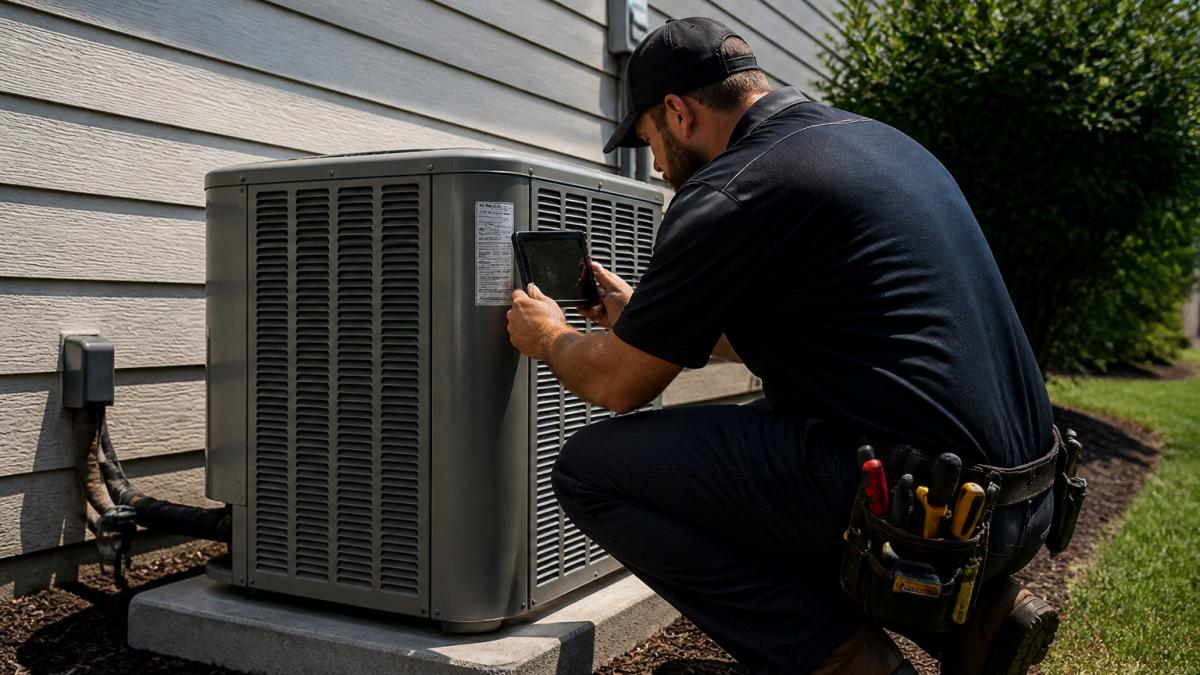
!A contractor in work gear kneeling beside a residential HVAC unit, holding a tablet and photographing the equipment label on a sunny jobsite
Trade-specific form examples show how the same capture approach adapts to different kinds of work.
| Trade | Typical form | Key capture detail |
|---|---|---|
| HVAC | Pre-season maintenance checklist | Filter size and static pressure readings |
| Electrical | Rough-in inspection checklist | Photo evidence of box fill and grounding |
| Roofing | Decking condition survey | Flashing detail photos and penetration annotations |
| Plumbing | Rough-in pressure test log | Timestamped photos at each joint |
| General contracting | Daily site log | Safety toolbox talk sign-in |
Field Reporting Apps for Contractors: Daily Logs and Crew Communication
Daily logs are where field data becomes useful to the office. Integrating these digital records with aerial imagery provides a comprehensive view of construction site documentation that keeps project stakeholders aligned throughout the build.
Crew communication matters just as much. Assigning tasks, flagging issues, and sharing photos in one place keeps the office and the field aligned. Watch out: a messaging feature that lives outside the job record creates a second place to search, and information gets lost between the two.
Offline access, data syncing, and permissions
Many job sites have weak or no signal, especially in basements, crawl spaces, and rural areas. An app that only works online will fail exactly when you need it.
Permissions are the other half of the story. Crew members usually need to fill in forms but not change invoices. Set roles so that each person sees only what their job requires, and confirm the app keeps an audit trail of who changed what.
Contractor Site Survey Apps and Choosing Your Next Step
Site survey apps let estimators measure, photograph, and annotate a property before a bid goes out. If you have already picked a Jobber-style app and need to move existing records, follow How to Migrate Customer Data to Jobber Step by Step.
When choosing your next step, start with the job you need done most often. Run a trial with one crew on real jobs for two weeks. Check whether the data reaches the office without extra steps. If it does, expand.
Many contractors also find that the bigger gain comes from connecting field data to scheduling, invoicing, and follow-up. HSP Automation builds those connections for home service businesses. Book an appointment with HSP Automation to see which workflow to tackle first.
Frequently Asked Questions
What should contractors look for in a field data capture app?
Look for mobile forms that work on both iOS and Android, photo and document attachments with GPS location and timestamps, offline mode with reliable data syncing, user permissions that limit who sees what, and an export option so your data stays yours if you switch tools. Check whether the app connects to the scheduling, job management, and invoicing software you already use, since double entry is the problem you are trying to solve. Ask for a trial period and test it on a real job with your crew before committing.
Can field data capture apps work offline?
Many do, but capabilities vary. Some apps let technicians fill out forms, capture photos, and log notes without any signal, then sync automatically once the device reconnects. Others only support limited offline viewing. Test offline behavior in basbasement areas, rural sites, and crawl spaces where cell coverage is weak, and confirm how conflicts are handled when two people edit the same record while disconnected.
How can contractors capture jobsite photos and notes in one place?
Choose an app that attaches photos, notes, and checklist answers to the same job record, with timestamps and location data added automatically. Set a standard naming or tagging habit for each job so office staff can find items later. Keep the workflow short: a technician should be able to snap a photo, add a one-line note, and move on in under a minute. Review whether the app lets you generate a single report per job that the customer or project manager can read.
How do field data capture apps connect with scheduling and invoicing tools?
Some apps include built-in scheduling and invoicing, while others integrate with field service management platforms. Integrations can push completed forms into the job record, trigger invoices when a checklist is signed off, or update the schedule when a crew finishes. Confirm which integrations are native and which require a third-party connector such as Zapier, and ask whether the vendor or a partner will maintain that connection if your workflow changes.
