November 14, 2026
HVAC Software With Offline Mobile Access: What Technicians Need
Last Updated: November 13, 2026 Quick Summary HVAC software with offline mobile access keeps job details on the technician's phone when cell service is weak or missing, and syncs changes once connectivity returns. The best apps cache the day's and next day's jobs and let technicians finish the visit
Written by Frankwin Hooglander — Founder & Automation Specialist
Last Updated: November 13, 2026
Quick Summary
HVAC software with offline mobile access keeps job details on the technician's phone when cell service is weak or missing, and syncs changes once connectivity returns. The best apps cache the day's and next day's jobs and let technicians finish the visit in airplane mode.
- Cache the day's and next day's jobs, with addresses, gate codes and equipment history, before leaving the truck.
- Test whether clock in, notes, photos, signatures, estimates and payments work in airplane mode.
- Confirm the app syncs automatically when the connection returns and shows a visible sync status.
- Ask how conflicting edits are resolved so reassigned jobs do not overwrite technician notes.
- Score each vendor on the offline test first, before comparing scheduling or invoicing features.
Table of Contents
- Why Offline Access Matters for HVAC Technicians
- What an Offline-Capable HVAC App Should Store and Sync
- Choosing the Best HVAC Software for Small Business
- Getting Your Technicians Trained and Using the App Daily
- Frequently Asked Questions
Why Offline Access Matters for HVAC Technicians
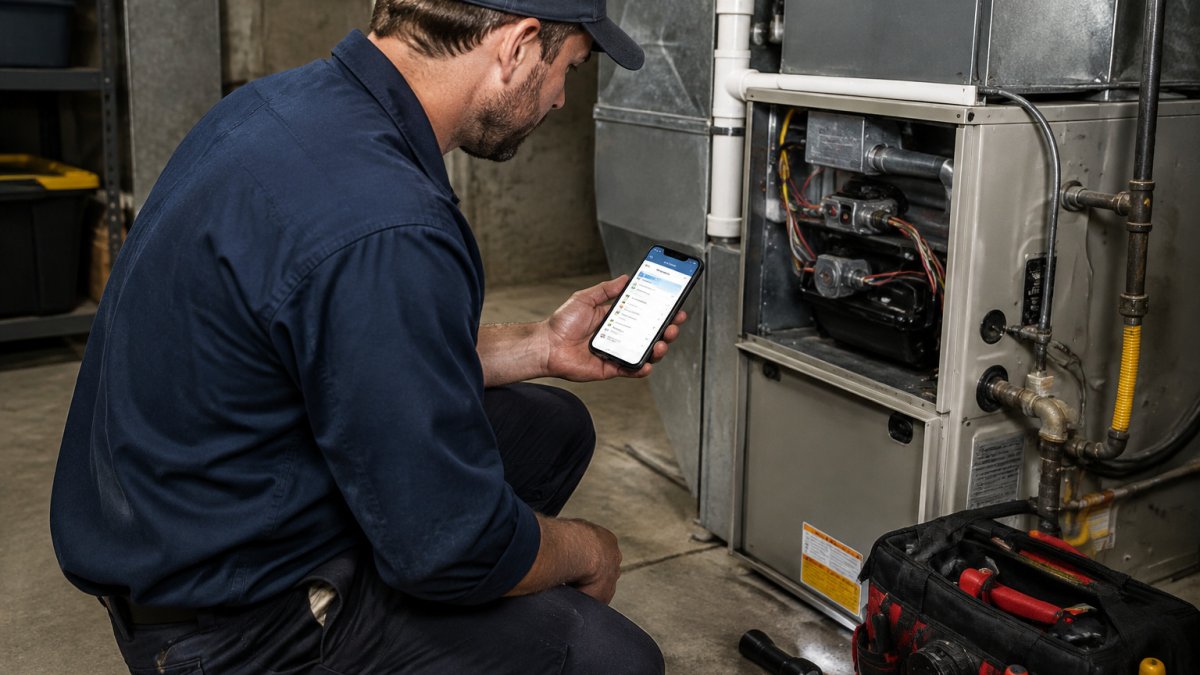
Many HVAC jobs happen where cell service is weak or missing. Basements, mechanical rooms, crawlspaces and rural properties all cut signal.
Offline-capable software keeps job details on the phone and syncs once connectivity returns.
What an Offline-Capable HVAC App Should Store and Sync
Most buyers ask "does it work offline?" and stop there. The better question is what the app keeps on the device, what a technician can change without signal, and how those changes reconcile on reconnect.
What should be cached on the device
A working offline setup holds more than the day's schedule. Before a technician leaves the truck, the app should have downloaded:
- The day's and next day's assigned jobs, with addresses, gate codes and access notes
- Customer contact details and service history for those jobs
- Equipment records tied to the address, model, serial number, install date, filter sizes, refrigerant type and prior service notes
Apps commonly cache a rolling window, often the current day plus the next, rather than the entire customer database. Ask how far back cached jobs go and whether a technician can pull an older job manually before losing signal.
What technicians should be able to do without signal
Reading a job card is the minimum. The useful test is whether a technician can complete the visit end to end in airplane mode:
- Clock in on arrival and clock out on departure
- Add notes, photos, and readings to the work order
- Mark tasks complete on a checklist
- Capture the customer's signature
- Build and present an estimate from the price book
- Record parts used and collect a payment authorization
- Set the job status to complete and queue the invoice
If any step requires a live connection, the app is only partly offline. Some apps let technicians view jobs offline but block estimate creation or payment capture, pushing the closeout back to the office.
How syncing should work
Sync is where offline apps earn or lose trust.
Conflict handling matters when two people touch the same job. A dispatcher may reassign a job while the technician is editing it in a basement. Good apps flag the conflict and show both versions rather than silently overwriting one.
Photo and video uploads are the usual bottleneck. Large files should upload in the background and resume if the connection drops, not fail and force a re-capture.
Questions to ask each vendor
- What exactly is stored on the device, and how far ahead does it cache?
- Which job actions are blocked without signal?
- How are conflicting edits resolved?
Simpro notes that offline access is useful for work in basements and remote areas without connectivity (Simpro, Best HVAC Mobile Apps for Technicians & Contractors), but the vendor's own description rarely covers conflict handling or file upload behavior.
The table below summarises which functions an offline-capable app should support in airplane mode and what to check on reconnect.
| Check | What to verify | Why it matters |
|---|---|---|
| Caching window | Day's and next day's jobs stored on device | Technicians can start work without signal |
| Clock in/out | Works offline | Time records stay accurate |
| Estimate and payment | Built and captured offline | Closeout does not wait for the office |
| Sync on reconnect | Automatic background sync | Offline edits reach the office without manual steps |
| Conflicting edits | Both versions shown, not overwritten | Reassigned jobs do not lose technician notes |
| Photo uploads | Background upload, resumes after drops | Files are not lost or re-captured |
| Manual sync | Available before entering a dead zone | Technicians can push data before losing signal |
Choosing the Best HVAC Software for Small Business
Most roundups compare feature grids. For a small HVAC shop, the decision usually turns on three things the grids miss: whether offline mobile access covers the full job, how the tool fits the way your technicians already work, and what it takes to get the team using it.
Score each platform on offline behavior first
Before comparing scheduling or invoicing, run the same offline test on every vendor you shortlist. Ask each one to demonstrate, on a phone in airplane mode:
- Opening an assigned job and reading equipment history
- Adding notes, photos, and a signature
- Building an estimate from the price book
Score each step pass or fail. A platform that passes four of five is a different purchase than one that passes two. This single test will narrow your list faster than any feature comparison.
Then compare the operational features that drive revenue
Once offline behavior is settled, compare the features that affect how fast you get paid and how often you go back:
- Scheduling and dispatching, including drag-and-drop reassignment and technician availability
- Work orders and job management, with photos and checklists attached to the record
- Customer and service history that follows the address, not just the contact
Weigh implementation and adoption, not just features
A platform your technicians won't use is worse than the spreadsheet you have now. Ask each vendor:
- How long does setup take for a shop your size, and who does the work?
- What data migration is included, customers, equipment, service history, price book?
- What training is provided, and is it live or self-serve?
A phased launch, one crew first, then the rest, surfaces problems before they affect every job. Vendors that promise a same-week go-live often skip data migration, leaving technicians without equipment history on day one.
Check integrations and data flow
Your mobile app is only as useful as the systems it talks to. Confirm how the platform connects with your accounting software, inventory and parts suppliers, CRM, payroll, and any equipment or diagnostic tools you use. Ask whether integrations are native or require a third-party connector, and who maintains them when an API changes.
Review security and permissions before you sign
Technicians carry customer data on their phones. Confirm role-based permissions so technicians see only their assigned jobs, device-level security such as passcodes and remote wipe, and a clear process for revoking access when a technician leaves. Ask where data is stored and how it is backed up.
Set a baseline so you can measure impact
Before you switch, record your current numbers: first-time fix rate, average travel time between jobs, technician utilization, invoice turnaround, and callback rate. Revisit them 90 days after launch.
Verify each vendor's offline features and pricing directly using the test above. You can see how Housecall Pro is set up and automated for service businesses, including custom integrations, CRM configuration and team training. For a side-by-side look at how two of these platforms fit an HVAC business, see our Jobber vs Housecall Pro for HVAC comparison.
Pricing depends on plan level, user count and add-ons, so request a quote from each vendor. HSP Automation can also help configure Housecall Pro and Jobber with custom workflows and integrations; learn how Jobber setup and automation works for home service teams.
Getting Your Technicians Trained and Using the App Daily
Offline features only help if technicians open the app on every job.
Expect resistance in the first few weeks. For a fuller onboarding plan, read our guide to training your team on business software, or explore training and onboarding support to get technicians working in the app daily.
Ready to get HVAC software running reliably in the field? Book an appointment with HSP Automation to set up your platform, integrations and team training.
Frequently Asked Questions
What does offline access mean in HVAC software?
Offline access means a technician can open, update and save job information on a phone or tablet without a live internet connection. Notes, photos, status changes and clock-in records are stored on the device and sync to the office system once connectivity returns. This matters in basements, mechanical rooms and rural properties where signal is weak. Before buying, confirm which record types the app caches and whether it caches them for a set period, such as the past week of jobs.
Can HVAC technicians complete service calls without an internet connection?
Often yes, but only for the functions the app supports offline. Many field service apps let technicians view recent jobs, add service notes, capture photos and record time while offline. Tasks that depend on live data, such as real-time dispatch changes or certain payment processing, usually need a connection. Ask each vendor to demonstrate a full service call in airplane mode during your trial so you know exactly which steps work.
How should a small HVAC business train staff to use new software?
Start with a short, role-based session for technicians focused on their daily tasks: opening a job, logging notes, capturing photos and closing the work order. Give office staff separate training on scheduling and invoicing. Write a one-page checklist for offline use, including how to confirm a sync has completed, and assign one internal champion to answer questions during the first month. Track adoption by checking how many jobs are closed in the app rather than on paper.
