October 25, 2026
7 Custom Zapier Workflows for Contractors to Save Hours
Last Updated: October 25, 2026 Quick Summary Custom zapier workflows for contractors connect the tools you already pay for so information moves on its own, running actions automatically when a trigger fires in another app. The highest-value workflow for most shops is estimate follow-up, which sends
Written by Frankwin Hooglander — Founder & Automation Specialist

Last Updated: October 25, 2026
Quick Summary
Custom zapier workflows for contractors connect the tools you already pay for so information moves on its own, running actions automatically when a trigger fires in another app. The highest-value workflow for most shops is estimate follow-up, which sends a reminder and logs the touch in your CRM when an estimate sits unsigned.
- The Housecall Pro integration exposes 13 triggers and 49 actions covering nearly every stage of a job.
- Start with one Zap, confirm it runs clean for a week, then add the next.
- Test every Zap with a single sample record before going live.
- Set up failure alerts from day one so Zaps don't fail silently for weeks.
- Duplicate customer records produce duplicates downstream, so clean the source first.
Table of Contents
- Zapier Automation Examples for Contractors That Cut Manual Work
- Housecall Pro Zapier Integration: What You Can Automate
- Contractor Workflow Automation Best Practices Before You Build
- Frequently Asked Questions
Zapier Automation Examples for Contractors That Cut Manual Work
Most contractors lose hours to small copy-paste jobs. Custom Zapier workflows for contractors connect the tools you already pay for so information moves on its own.
At HSP Automation, we build these for HVAC, plumbing, electrical, and cleaning companies weekly. A Zapier workflow runs when a trigger fires in one app and actions respond in another.
Below are seven workflows that deliver the fastest relief, plus Housecall Pro's Zapier coverage and the rules to follow.
1. New Lead Capture and Instant Routing
A form submission creates a contact record and notifies the right person within seconds, routed by service type or ZIP code.
2. Estimate Follow-Up Sequences
When an estimate sits unsigned, a scheduled action sends a reminder and logs the touch in your CRM, the highest-value workflow for most shops.
3. Job Scheduling and Dispatch Notifications
A booked appointment triggers a calendar event, customer confirmation, and crew notification.
4. Invoice Creation and Payment Reminders
When a job closes, the workflow creates the invoice and queues a payment reminder if unpaid.
5. Document Filing and Contract Signing
Signed contracts and job photos file into the right cloud folder and attach to the customer record.
6. Review Requests After Job Completion
A completed job triggers a review request while the customer still remembers the tech's name.
7. Data Syncing Between Field and Office Systems
Bi-directional sync keeps contacts and job status matching across your field platform, spreadsheet, and accounting software.
| Workflow | Trigger | Main Action | Manual Effort Removed |
|---|---|---|---|
| Lead routing | Form submission | Create contact, notify | Manual entry, slow response |
| Estimate follow-up | Estimate sent, no reply | Send reminder, log activity | Chasing by memory |
| Invoicing | Job marked complete | Create invoice, queue reminder | End-of-week billing crunch |
For more patterns, browse the workflow automation guides.
Housecall Pro Zapier Integration: What You Can Automate
The Housecall Pro integration exposes 13 triggers and 49 actions, covering nearly every stage of a job.
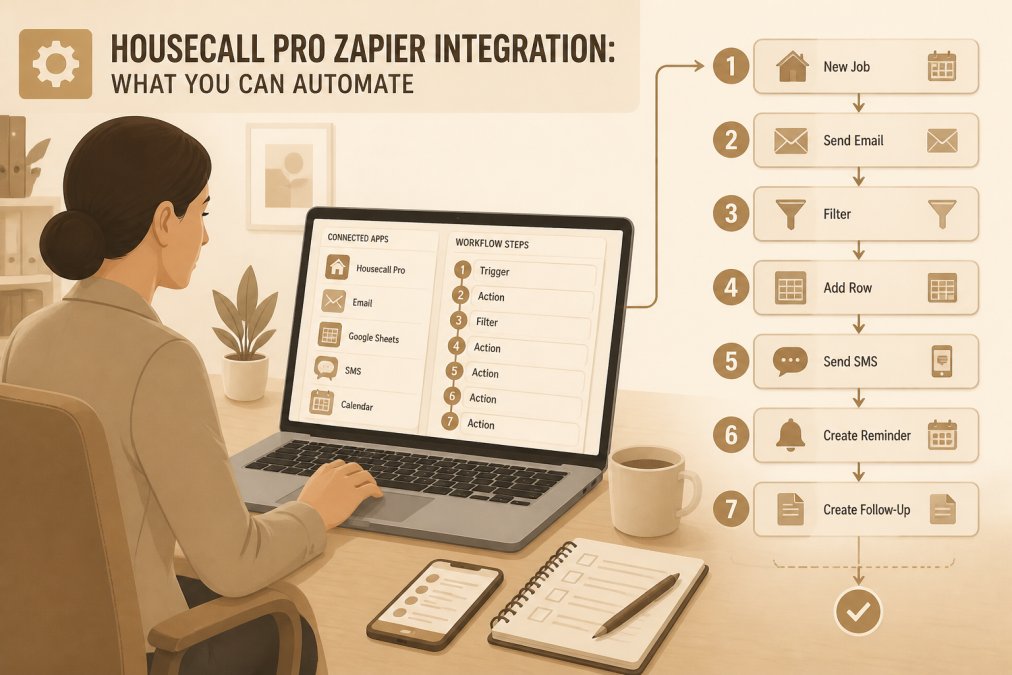
Top triggers fire on new jobs, new customers, and completed work; actions create customers, schedule jobs, and update records. Connect Housecall Pro to QuickBooks, your calendar, email tools, and thousands of other apps through Zapier.
The integration is only as clean as your data: duplicate customer records produce duplicates downstream, so clean the source first.
To skip the setup, our custom Housecall Pro Zapier integration comes prebuilt with these triggers and actions ready to deploy.
Contractor Workflow Automation Best Practices Before You Build
Three rules separate workflows that hold up: map the process on paper first, test every Zap with a single sample record before going live, and build in error handling so failed runs notify a human.
Don't build ten Zaps at once. Start with one, confirm it runs clean for a week, then add the next. Field mapping errors are the usual culprit when a Zap fails.
A Zap with no error notification can fail silently for weeks. Set up failure alerts from day one.
Limit connected app permissions to what each workflow needs, and review who can edit Zaps. If maintaining these yourself feels risky, our done-for-you Zapier automation covers the build and upkeep.
Not sure which workflows fit? Get in touch for a free consultation, or explore managed Zapier automation for contractors.
Frequently Asked Questions
How can contractors use Zapier to automate their business?
Contractors connect the apps they already use, like a form tool, Housecall Pro, and QuickBooks, then set a trigger and an action. A new form submission can create a contact record and send a follow-up text. A completed job can generate an invoice and a payment reminder. The goal is to remove the copy-paste steps between systems so leads and jobs move forward without someone retyping data.
Can Zapier connect Housecall Pro to accounting software?
Yes. A Housecall Pro Zapier integration can pass job and customer details to accounting software so invoices and contact records stay in sync. Set the trigger to a completed job or a new customer, then map fields like name, address, and job total to the accounting app. Test with a few sample records first and watch for duplicate contacts before turning it on for the whole team.
What tasks should a contractor automate first?
Start with the task that eats the most office time each week. For most contractors that is lead follow-up and invoice creation. Build one workflow, run it for a week, and check that every record lands correctly. Once that works, add scheduling notifications or payment reminders. Keeping the first build small makes errors easy to spot and fix.
The real challenge isn't knowing that automation helps. It's building workflows that survive contact with a busy schedule, messy data, and a team that has to trust them. HSP Automation connects Housecall Pro, ServiceTitan, Jobber, and QuickBooks into custom Zapier workflows, backs them with role-based training and SOP documentation, and maintains them so nothing fails silently. Get started with HSP Automation and reclaim the hours your team spends on manual entry.
