November 13, 2026
7 Things an HVAC Field Service App Must Do for Technicians
Last Updated: November 12, 2026 Quick Summary A field service app for HVAC technicians must work in the truck, letting a technician see the day's jobs, open customer notes and equipment history, record parts, capture photos and signatures, and close out a job from one screen. Offline access is essen
Written by Frankwin Hooglander — Founder & Automation Specialist
Last Updated: November 12, 2026
Quick Summary
A field service app for HVAC technicians must work in the truck, letting a technician see the day's jobs, open customer notes and equipment history, record parts, capture photos and signatures, and close out a job from one screen. Offline access is essential, since basements and rural sites often lack signal. Adoption depends on the workflow, not the feature count.
- Technicians should see equipment history, notes and open work orders on a single screen when arriving.
- Test offline access on a real job in a basement before committing to a vendor.
- Record a baseline for first-time fix rate, travel time, and invoice turnaround before switching.
- Clean customer and equipment data before import to avoid a slow first month.
- Re-measure key metrics after 60 to 90 days to judge whether the app is working.
Table of Contents
- What an HVAC Field Service App Has to Do in the Truck
- Dispatch, Job Details and Equipment History on One Screen
- Training Your Team and Checking Adoption After Launch
- Planning Your Rollout With a Software Implementation Checklist and Next Steps
- Frequently Asked Questions
What an HVAC Field Service App Has to Do in the Truck
An HVAC field service app has one job: give the technician on the roof everything they need without a call to the office.
Technicians need to see the day's jobs in order, open a job and read customer notes, and mark work complete from one screen. They also need to take photos, capture signatures and record parts used before leaving the site.
Dispatch, Job Details and Equipment History on One Screen
Dispatch is where many field service setups break down: the office assigns a job, the technician gets a text, and nobody knows whether the visit happened. A good app keeps dispatch, job details and equipment history in one view. Judge it by walking a single job from dispatch to closeout and watching where the technician has to leave the screen.
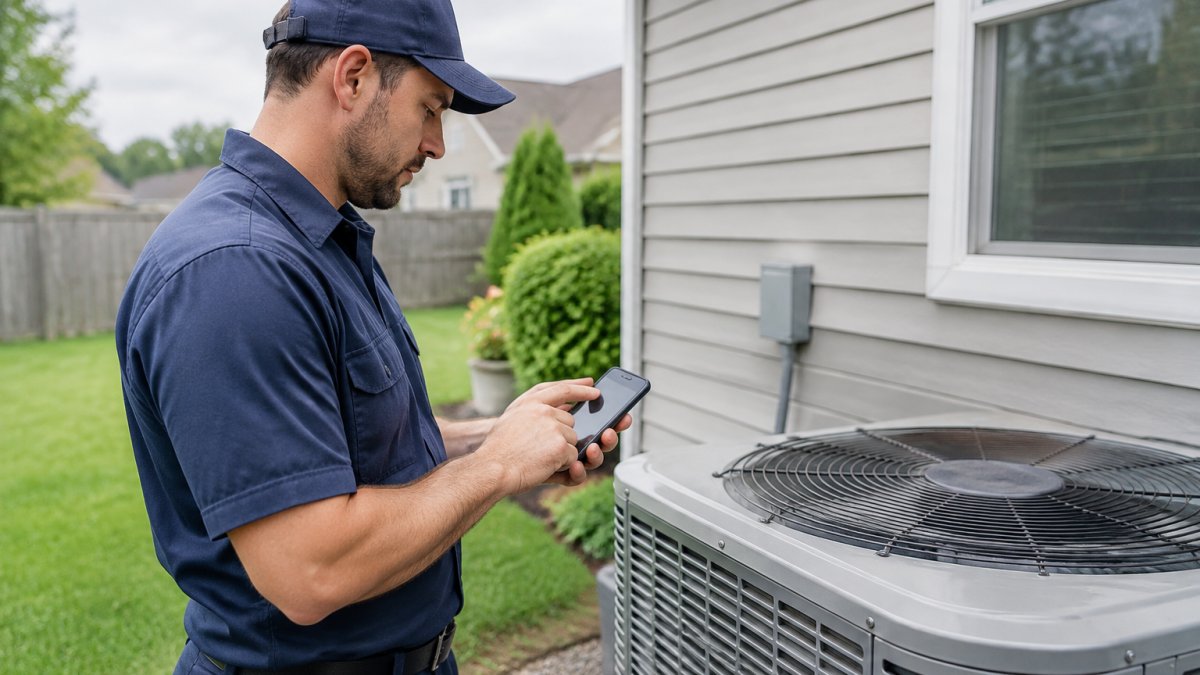
The technician workflow, dispatch to closeout
- Accept and review the dispatch. The technician sees the day's route, customer notes, gate codes and reported symptom before rolling.
- Pull equipment history on arrival. Model, serial number, install date, prior repairs, last tune-up and open work orders tied to that equipment, not just the invoice. This shortens diagnosis and prevents repeat visits.
- Capture the diagnosis and parts. Record the finding, select parts from truck stock, and attach photos of the failed component and nameplate to the equipment record.
- Present options and capture approval. Build an estimate on the spot, show the customer the options, and capture a signature on the device, tied to the job.
- Close out and invoice. Mark the work complete, record labor and parts, and trigger the invoice from the same screen.
- Sync and hand off. Once in coverage, the job, photos, signature and parts sync cleanly, and the office sees the closed job without re-keying.
If any step forces the technician to switch apps, write on paper or call the office, that is where adoption will fail. Fix the worst step first rather than buying more features.
Offline access and unreliable connectivity
Basements, mechanical rooms, crawl spaces and rural properties often have weak or no signal. Ask vendors what a technician can view, edit and sync offline: the day's jobs, customer notes, equipment history and parts lists cached on the device, with the ability to complete the job, capture photos and signatures, and record parts without a connection. Data should queue and sync automatically once coverage returns, with a visible sync status.
Integrations and data flow
A field app is only as useful as the data it shares. Confirm how it connects with accounting, inventory, CRM, payroll and any diagnostic systems you use. Does a closed job flow to accounting without re-keying, does parts usage update inventory, and do customer and equipment records stay in sync both ways? Ask for integrations by name and test one end-to-end before rollout.
Security, permissions, and customer data
Technicians carry customer data on a device that leaves the building. Role-based permissions should limit what each technician can see and edit, and there should be a clear process for revoking access and wiping the device when a technician leaves. Ask how customer data is stored and transmitted, and whether the vendor supports the device security settings you require.
Measuring the impact
Before you switch, record a baseline for first-time fix rate, travel time, technician utilization, invoice turnaround, and callbacks. Re-measure after 60 to 90 days.
Test with a real job before you commit. Pull up three recent customers and confirm the app shows their equipment history, notes and open work orders on a single screen, and that a technician can close one of those jobs offline.
The technician workflow from dispatch to closeout breaks down into six steps, each with a clear purpose.
| Step | What the technician does | Key outcome |
|---|---|---|
| Accept and review the dispatch | Sees route, customer notes, gate codes and reported symptom before rolling | Arrives prepared |
| Pull equipment history on arrival | Checks model, serial number, install date, prior repairs and open work orders | Shortens diagnosis, prevents repeat visits |
| Capture the diagnosis and parts | Records finding, selects truck-stock parts, attaches photos to equipment record | Complete equipment record |
| Present options and capture approval | Builds estimate on site and captures customer signature on the device | Approval tied to the job |
| Close out and invoice | Marks work complete, records labor and parts, triggers invoice | Invoice from the same screen |
| Sync and hand off | Job, photos, signature and parts sync once in coverage | Office sees closed job without re-keying |
Training Your Team and Checking Adoption After Launch
Most software rollouts fail after launch, not during setup. Technicians revert to old habits when the tool is slow to learn or nobody checks whether it is being used.
Our training and onboarding services can help teams build these sessions and reference guides. You can find more on our Housecall Pro setup and team training and Jobber configuration for home service teams pages.
Planning Your Rollout With a Software Implementation Checklist and Next Steps
A written checklist keeps the rollout on track. Confirm which jobs, customers and equipment records will move, and who owns cleaning that data. Set a go-live date, name a point person, and decide how long the old process runs in parallel. The gap most feature lists miss is the rollout itself, a practical plan, training cadence and measurable review points decide whether the app sticks.
Data migration checklist
- Map each current step, from call intake to invoice, to a step in the new app.
- Clean customer and equipment records before import: fix duplicates, standardize addresses, and attach model and serial numbers to the right equipment.
- Decide which historical jobs and equipment records move and which stay read-only in the old system.
Importing dirty customer and equipment data is the most common cause of a slow first month. Clean first, import second.
Training and onboarding cadence
Start with short, role-specific sessions: dispatchers on scheduling and reassignment, technicians on the job screen, photo capture, offline use and closing out a ticket. Keep a one-page guide in the truck. A common pattern is a session before go-live, a refresher in week two, and a lead-technician check-in each week for the first month. Train on the dispatch-to-closeout workflow, not a feature tour.
Adoption metrics and review points
Check adoption with numbers, not impressions: jobs closed in the app versus on paper each week, invoices sent the same day, and jobs requiring a call back to the office. Ask the lead technician what slows the crew down. Set a two-week review point and a 60- to 90-day review comparing first-time fix rate, travel time, utilization, invoice turnaround and callbacks against your baseline.
Next steps
Once the checklist is complete, you will know whether the app fits your crew. Book a conversation with HSP Automation to map your workflow, and we will help you set it up so your technicians can work faster from the truck. Our training and onboarding services can help teams build these sessions and reference guides. You can find more on our Housecall Pro setup and team training and Jobber configuration for home service teams pages.
Frequently Asked Questions
What should an HVAC field service app include for technicians?
At minimum, a technician app should show the day's dispatch list, full job details, customer contact information, and equipment history for the unit being serviced. It should let technicians attach photos, record parts used, capture the customer's signature, and create or update an invoice before leaving the site. Look for offline access so job details remain available when cell coverage drops in basements or mechanical rooms. Ask vendors to demonstrate a complete service call on a phone, not just the office dashboard, before you commit.
How do you train HVAC technicians to use a new service app?
Train on real jobs rather than a generic demo. Have each technician complete one scheduled service call start to finish in the app, from accepting the dispatch to closing the invoice. Keep a one-page SOP for the three or four tasks technicians perform most often. Name one internal champion who answers questions during the first two weeks. Software implementation checklists help by mapping each training session to a specific workflow step, so nothing is skipped.
Can HVAC technicians use field service apps offline?
Some can, but offline capability varies a lot between products, so confirm it directly. Ask whether technicians can open job details, record notes and photos, and capture payment without a connection, and whether those entries sync automatically once the phone reconnects. Test this in the places your crews actually work, such as crawl spaces and commercial mechanical rooms, before rolling the app out to the whole team.
