November 5, 2026
7 Mobile Job Updates That Cut Contractor Admin Time
Last Updated: November 4, 2026 Quick Summary Mobile job updates are field-captured records sent from a phone or tablet that tell the office what happened on a job while it is still fresh. The seven worth sending are arrival and departure timestamps, photo and video progress logs, manpower counts and
Written by Frankwin Hooglander — Founder & Automation Specialist
Last Updated: November 4, 2026
Quick Summary
Mobile job updates are field-captured records sent from a phone or tablet that tell the office what happened on a job while it is still fresh. The seven worth sending are arrival and departure timestamps, photo and video progress logs, manpower counts and equipment notes, job status changes, parts requests, customer sign-off, and safety or site condition flags.
- Paper job updates create double entry, delayed billing, and phone tag that cost contractors hours every week.
- Choose a jobsite management app that saves offline first and syncs automatically when signal returns.
- If a routine update takes more than three taps, crews skip it, so count taps in the demo.
- Start adoption with one crew and one update type, such as arrival and departure timestamps, for two weeks.
- Connecting field software to payroll and accounting removes retyping, but clean duplicate customer records first.
Table of Contents
- Why Paper Job Updates Cost Residential Contractors Hours Every Week
- The 7 Mobile Job Updates Worth Sending From the Field
- What to Look For in a Jobsite Management App
- Offline-First: The Feature Most Daily Report App for Construction Buyers Skip
- How to Write Contractor Customer Update Templates That Get Read
- Getting Field Crews to Actually Use a Construction Daily Log App
- Wiring Job Updates Into Payroll and Accounting
- Book a Walkthrough of Your Job Update Workflow
- Frequently Asked Questions
Why Paper Job Updates Cost Residential Contractors Hours Every Week
Most contractors don't lose hours to the actual work. They lose them to the paperwork that trails behind it. A tech finishes a job, writes the details on a clipboard, and that paper sits in a truck until someone drives it back to the office. By then, the office has already called the customer twice to confirm what happened.
Mobile job updates fix that gap. A mobile job update is any field-captured record, sent from a phone or tablet, that tells the office what happened on a job while it's still fresh.
Paper creates three hidden costs:
- Double entry. Someone retypes notes into billing or payroll software.
- Delayed billing. Invoices wait on paperwork that waits on a truck.
- Phone tag. Office staff interrupt crews to ask basic questions.
A common approach is to photograph the paper ticket and text it in. That helps, but it still leaves a human to read and re-key it later. If you want to go further, our guide on automated daily reports for home service crews walks through what a fully connected version looks like.
The 7 Mobile Job Updates Worth Sending From the Field
Not every update deserves a notification. These seven carry real weight for scheduling, billing, and customer trust. Send them from the phone, not from memory at 6 p.m.
Arrival and Departure Timestamps
A timestamped arrival and departure is the simplest update you can send, and it settles the most arguments. It confirms the tech showed up, how long the job took, and whether the next appointment is still on schedule. Crew dispatch gets real data instead of a guess.
Photo and Video Progress Logs
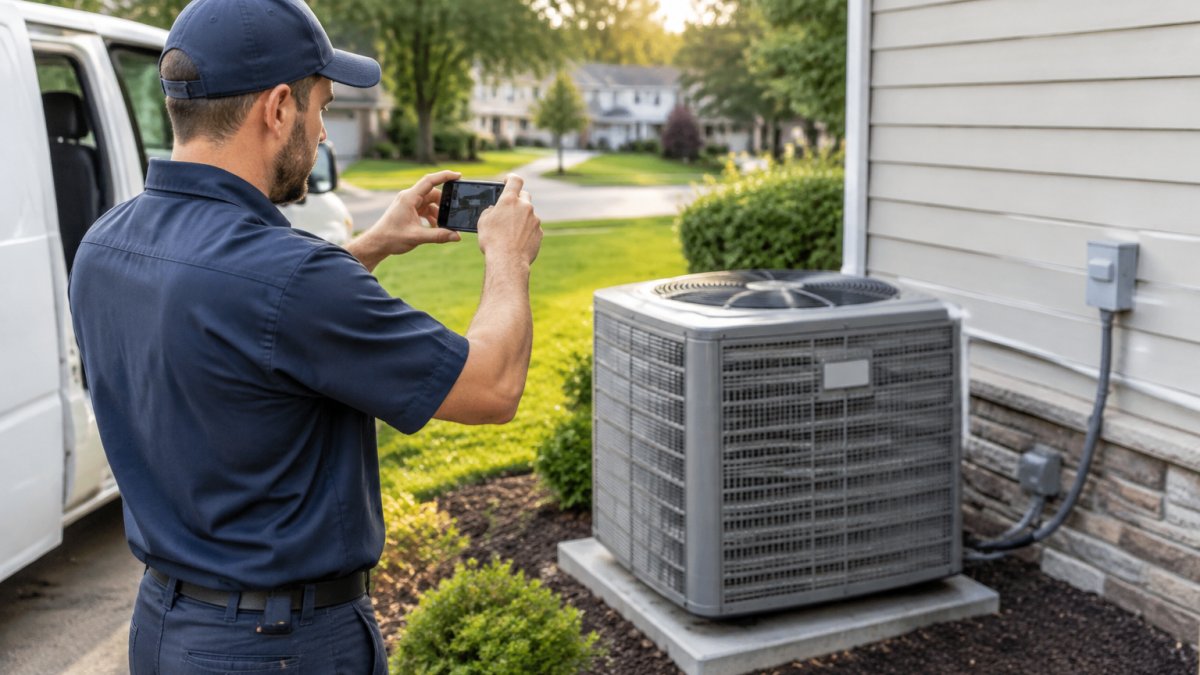
Photos beat paragraphs. A before-and-after shot of a water heater swap or a panel replacement documents the work and protects you if a customer disputes it later. Video works for anything a still image can't explain, like a slow leak or a noisy blower.
Manpower Counts and Equipment Notes
Two techs on site for four hours is different from one tech for two hours, and payroll needs to know which it was. Equipment notes matter too: what came off the truck, what needs restocking, and what has to come back tomorrow.
The other four updates worth sending are job status changes, parts requests, customer sign-off, and safety or site condition flags. Each one removes a phone call from someone's day.
What to Look For in a Jobsite Management App
A jobsite management app is software that lets field crews capture job data on a phone and sync it to the office without paper. The right one fits how your crews already work, not the other way around. The right test is whether the app survives a real Tuesday: a basement with no bars, a tech wearing gloves, and an office manager who needs the data in payroll by Friday.
Check these before you commit:
- Offline-first saving. The app must write the update to the phone's local storage first and sync later. A "cloud-only" app that needs a connection to save will fail in crawlspaces, rural lots, and metal-framed buildings. Ask the vendor to demo it in airplane mode.
- Photo, video, and voice capture. Typing on a ladder doesn't happen. Voice-to-text lets a tech narrate a note while packing up, and photo capture with automatic compression keeps uploads small enough to sync on a weak signal.
- Clean exports and integrations. Data should leave as CSV or push directly into your accounting and payroll tools. Ask specifically whether the app has a native payroll integration or only a CSV export, the difference is hours of retyping every pay period.
- Simple screens. If a routine update takes more than three taps, crews skip it. Count the taps in the demo, not the feature list.
- Real sync with conflict handling. Updates should reach the office without a manual refresh, and the app should flag when two people edit the same job so nothing gets silently overwritten.
- Audit trail. Every update should record who sent it, when, and from which device. That trail is what protects you when a customer disputes a timeline.
A common mistake is choosing software by feature count. The better test is whether a tired tech can complete an update in under a minute, offline, and have it land in the office without anyone touching it. If you want a shortlist to compare, our breakdown of field data capture apps for contractors covers the trade-offs.
| Update Type | Why It Matters | Who Uses It |
|---|---|---|
| Arrival/departure timestamps | Confirms schedule and labor hours | Dispatch, payroll |
| Photo/video logs | Documents work and condition | Office, customer |
| Manpower counts | Tracks labor for billing | Payroll, billing |
| Equipment notes | Flags restock and return trips | Dispatch, purchasing |
| Job status changes | Keeps the board accurate | Dispatch |
| Parts requests | Prevents second trips | Warehouse, dispatch |
| Customer sign-off | Closes the job cleanly | Billing |
| Site condition flags | Records hazards and access issues | Office, safety |
Watch out: a demo on full Wi-Fi hides the exact failure mode that kills field software. Make the vendor show you offline saving and automatic sync before you sign, or you will discover the gap in a basement on a Friday afternoon.
Offline-First: The Feature Most Daily Report App for Construction Buyers Skip
Here's where buyers get burned. A daily report app for construction crews looks great in a demo on full Wi-Fi. Then a tech walks into a basement with no bars, taps save, and the app spins.
Offline-first means the app writes the update to the phone first and syncs later. The tech never waits on a signal. When the phone finds service, the data uploads on its own.
Ask three questions before you buy:
- Does the app save without a connection?
- Does it sync automatically when signal returns?
- Does it flag conflicts if two people edit the same job?
If the answer to any of those is no, keep looking. Connectivity problems are the number one reason field software fails in practice, and it has nothing to do with how the app looks.
How to Write Contractor Customer Update Templates That Get Read
Customers don't read long updates. They scan for two things: is someone coming, and when. Good contractor customer update templates answer both in the first line.
Keep every message short and specific:
- Lead with the time window, not a greeting.
- Name the tech and the job.
- Add one line on what was done or what happens next.
- End with a single clear action, like a payment link or a reply request.
Here's a template you can copy:
Hi [Name], your [service] is scheduled for [day] between [window]. Your tech is [Tech Name]. We'll text you when they're on the way. Reply here with any questions.
And a follow-up after the visit:
Hi [Name], [Tech Name] finished your [service] today. Here's a photo of the completed work: [link]. Your invoice is attached. Thanks for choosing us.
Short, plain, and predictable beats clever every time.
Getting Field Crews to Actually Use a Construction Daily Log App
The best construction daily log app is worthless if your techs won't open it. Adoption is a people problem, not a software problem, and most rollouts skip it. Software rollouts often fail when crews are not brought along. They need to see the benefit. A crew that has run paper tickets for fifteen years sees a new app as extra work until someone proves otherwise. When crews see how timely updates keep everyone aligned, the app feels less like extra work and more like a practical way of avoiding construction delays.
Treat the rollout as a change-management project with a sequence, not a launch day.
1. Pick one crew and one update type. Start with a single crew and a single update, arrival and departure timestamps are the easiest win because they replace a phone call the office already makes. Run it for two weeks before adding anyone else. A small, visible success gives you a reference crew the others will actually listen to.
2. Train on the phone, in the truck, on a real job. A conference-room demo teaches nothing. Walk the tech through the exact taps on their own device, on a real ticket, before they roll. Then have them do it once while you watch. Repetition on the real screen is what sticks.
3. Explain the why in crew terms. Tell them the update stops the 4 p.m. phone calls and the retyping at the office. Frame it as removing work from their day, not adding a task. Crews adopt tools that make their afternoon shorter.
4. Name a champion on the crew. Pick the tech the others already ask for help and make them the go-to. Peer help travels faster than a manager's memo, and it keeps the rollout from feeling like surveillance.
5. Check in weekly and fix friction fast. Ask what's slowing them down and change it. If a screen takes too many taps, simplify the form. If a field is confusing, rename it. The first month decides whether the app survives.
6. Handle the holdouts directly. A crew that quietly keeps using paper will pull the rest back. Find out whether the blocker is the tool, the training, or trust, and address that specific issue rather than repeating the launch message.
What fails is a big launch with no follow-up. Crews go back to paper within two weeks. If you're weighing tools for a small team, our guide to communication apps for small contractor crews and this comparison of crew communication tools both focus on what crews actually stick with.
Watch out: rolling out every update type at once overwhelms crews and guarantees a retreat to paper. Sequence the rollout, and don't remove the paper backup until the new habit is established.
Wiring Job Updates Into Payroll and Accounting
This is the step most contractors skip, and it's where the real time savings hide. A job update that only lives in a field app still needs a human to move it into payroll and invoicing.
Connected workflows close that loop. An approved timesheet can flow to payroll. A completed job can trigger an invoice. A parts note can update inventory. No one retypes anything.
Custom Zapier workflows can link your field software to your accounting and payroll tools. Well-designed workflows can reduce manual work for field and office teams. If you want to see what that looks like, our workflow automation service covers the setup.
Watch out: connecting tools before your data is clean just moves the mess faster. Fix duplicate customer records first.
Book a Walkthrough of Your Job Update Workflow
Mobile job updates only pay off when the data flows all the way through, from the tech's phone to the invoice. Most contractors get the first half right and stall on the second.
That's the gap we close. HSP Automation offers custom Zapier workflow integrations, role-based training workshops, custom SOP documentation, and websites and hosting that can feed leads into your system.
Get started with HSP Automation and turn every job update into hours back in your week.
Frequently Asked Questions
What information should contractors include in a daily job update?
At minimum: arrival and departure times, the work completed, materials used, and photos of the finished work. Add manpower counts, equipment on site, and any site conditions that affected the job. Weather logging matters for exterior work like roofing and landscaping. Keep the update short enough that a tech can finish it in under two minutes on a phone. The goal is a record the office can bill from and the customer can read without calling to ask what happened.
How often should residential contractors send job updates?
Send one when the crew arrives, one when work wraps, and anything urgent in between. Multi-day jobs benefit from a short end-of-day summary so the customer knows where things stand. More frequent updates sound good but backfire: crews start skipping them and customers stop reading. Two or three touchpoints per visit is the practical ceiling for most residential work, and automation can handle the sending so nobody has to remember.
What is the difference between a jobsite management app and a daily report app?
A jobsite management app covers the whole job: scheduling, dispatch, photos, notes, and customer communication in one place. A daily report app for construction focuses on the end-of-day record, such as labor hours, work completed, and site conditions. Many contractors start with reporting and later need scheduling and dispatch too. Pick a tool that handles both, or plan for an integration, so you are not re-entering the same job details into two systems.
Can mobile job updates sync with payroll and accounting software?
Yes, and this is where most of the time savings come from. When a tech logs hours and materials in the field, that data can flow into payroll and into accounting tools like QuickBooks without anyone retyping it. Fewer keystrokes means fewer errors in labor hours and invoices. Ask any vendor to show the specific integration before you buy, and test it with one real job before rolling it out to the whole crew.
