November 23, 2026
Business Process Automation Examples: 8 to Copy Today
The best business process automation example for you is a repetitive, rule-based process that touches customers or money and runs the same way every time. For most small service companies, that means...
Written by Frankwin Hooglander
The best business process automation example for you is a repetitive, rule-based process that touches customers or money and runs the same way every time. For most small service companies, that means instant lead response, contract sending, invoicing, and customer follow-up. Larger teams with more office staff get more from onboarding, purchasing approvals, and reporting. Start with the process that costs you the most hours or the most missed revenue today.
Most owners already know their admin is slow. Leads sit unanswered for hours, invoices get retyped into accounting software, and new hires learn by shadowing whoever is free. The hard part is seeing which of those problems software can fix, and what the fix looks like step by step.
This article walks through eight business process automation examples across sales, finance, HR, operations, and support. Each one shows the trigger, the steps, who it suits, and what it takes to set up. The examples come from the work HSP Automation does for home service and trades companies, but the patterns apply to any business.
What business process automation means in practice
Business process automation (BPA) is software that carries a repeatable process from its trigger to its finish with little manual work. A new lead, an approved estimate, or an accepted job offer starts it. The software then moves the data, sends the messages, and creates the records that a person used to handle by hand.
Task, workflow and process automation
Every example of business process automation sits at one of three levels. Knowing which level you need keeps projects small enough to finish.
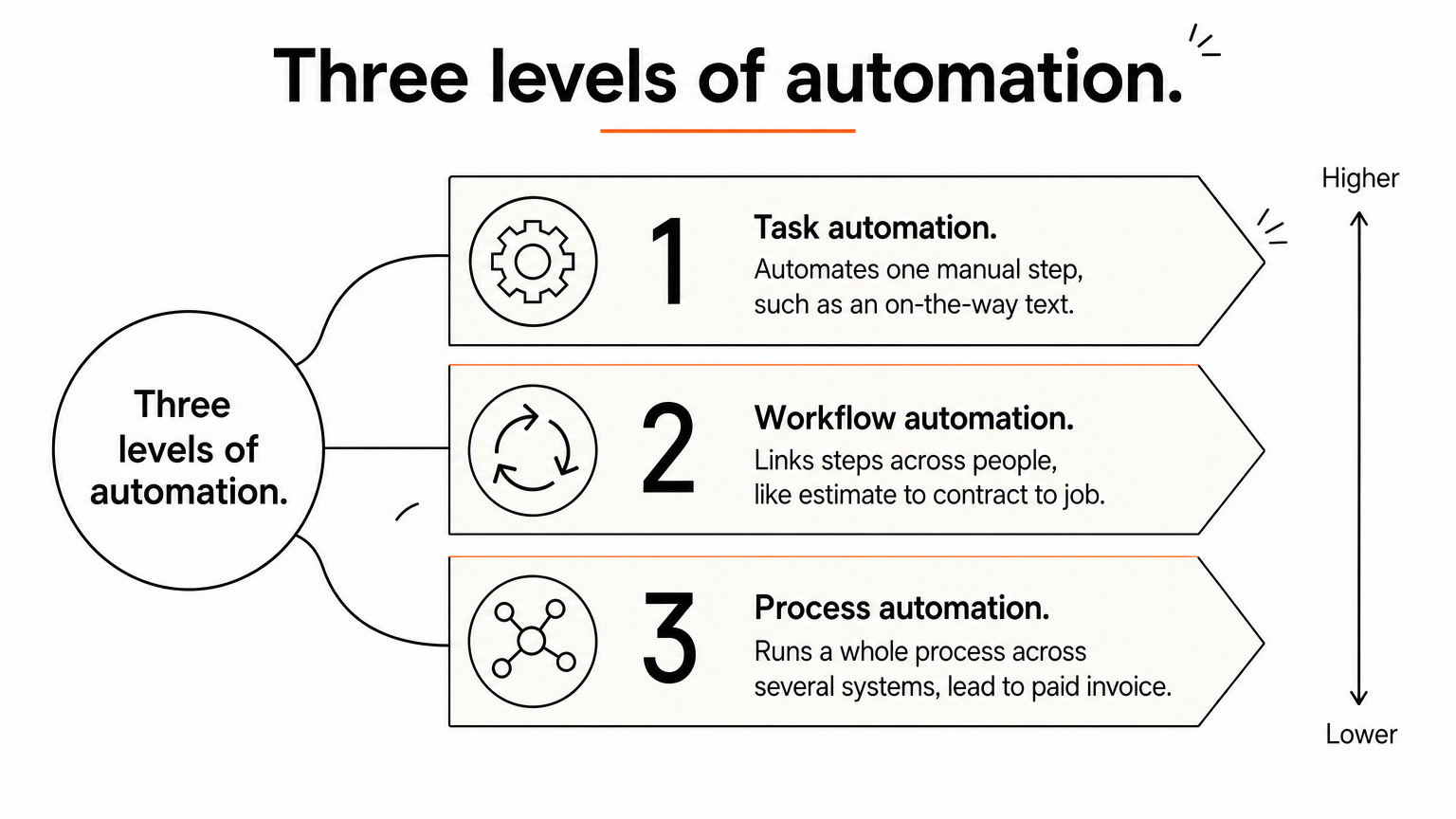
| Level | What it automates | Example |
|---|---|---|
| Task | One manual step | Texting a customer when a tech is on the way |
| Workflow | A sequence of steps across people | Estimate approved, contract sent, job created |
| Process | A whole process across several systems | Lead received through to invoice paid |
Two related terms cause confusion. Robotic process automation (RPA) is one tool inside BPA that copies clicks on a screen, and business process management (BPM) is the wider discipline of mapping and improving processes. For a small business, connecting your apps through Zapier or direct API links covers most of what you need.
What makes a process worth automating
Good candidates share a few traits. Check any process against this list before you spend time on it:
- It happens often, at least several times a week.
- The rules are clear, so a person could follow them without judgment calls.
- More than one person or tool touches it.
- Delay costs you money or customers.
- Mistakes are expensive or embarrassing.
If a process fails these tests, fix the process first. Document the manual version step by step, because software repeats whatever you give it, including the mistakes.
Automate a process you can describe in plain steps, because software repeats what you give it, errors included.
The eight examples at a glance
The table below previews the examples in this article, so you can jump to the one that matches your biggest bottleneck.
| # | Example | Department | Trigger |
|---|---|---|---|
| 1 | Instant lead response | Sales | New inquiry arrives |
| 2 | Estimate to signed contract | Sales and legal | Estimate approved |
| 3 | Job to invoice and payment | Finance | Job marked complete |
| 4 | Employee onboarding | HR | Offer accepted |
| 5 | Follow-up and review requests | Customer support | Job closed |
| 6 | Scheduling and dispatch | Operations | Job booked or changed |
| 7 | Purchasing and approvals | Procurement | Stock below minimum |
| 8 | Weekly reporting | Management | Scheduled time |
Combined, these workflows may save 10 to 20 hours of administrative work per week, depending on your job volume and how each one is configured.
1. Instant lead response and intake
Lead response automation answers every new inquiry within seconds, records it in your CRM, and alerts your team. It is the best first example for service companies, because a lead who waits is a lead who calls the next company. Speed here protects revenue directly.
How it works
The trigger is any new inquiry, such as a web form, an ad lead, or an inbound message. After that, the workflow runs without anyone touching it:
- The lead receives an instant text and email confirming you got the request.
- The reply asks for the details your office needs, such as address and service type.
- The lead is created in your CRM or field service software.
- Your team gets a notification with the lead's details.
Because the system runs around the clock, a Saturday-night inquiry gets the same reply as a Tuesday-morning one. Your office then picks up a lead that is already logged and acknowledged.
Who it suits and what it takes
Any business that wins on speed benefits, including HVAC, plumbing, electrical, roofing, and locksmith companies. HSP Automation's Lead Response Systems cost $97 to $297 a month, depending on volume and complexity, and that price includes setup, ongoing monitoring, and adjustments.
Your own effort goes into the wording. Write the automatic replies in your voice, and decide who follows up once the first message goes out.
The first reply does not need to close the job, it only needs to arrive before your competitor's does.
2. Estimate approval to signed contract
Contract automation sends the agreement for e-signature the moment a customer approves an estimate. The manual version means an office person copies details into a document, emails it, and chases the signature. This example removes that chase and puts a signed record on file for every job.
How it works
The workflow starts inside your field service software. When a customer approves an estimate, or a job is created, a trigger fires and the rest follows:
- The estimate is approved or the job is created.
- The matching contract type is selected for that job.
- The customer receives the contract through DocuSign to sign.
- The signed agreement is stored, so you have it if a payment is ever disputed.
Signed agreements help reduce chargeback risk, which matters on large jobs with deposits. The office stops being the middleman for every signature.
Who it suits and what it takes
Companies with big-ticket or deposit-based work gain the most, such as roofing, solar, remodeling, and landscaping installs. HSP Automation's Housecall Pro and DocuSign integration comes in plans from $97 to $197 a month, depending on whether you need 1, 3, or 5 contract types. Most setups are finished within 2 to 3 business days.
For example, the entry plan is $97 a month plus a one-time $97 setup fee. Billed monthly, that is $1,261 in the first year (12 × $97 + $97), before your own DocuSign subscription. Yearly billing saves 17%.
Send the contract automatically at the moment of approval, while the customer is still ready to commit.
3. Job completion to invoice and payment sync
Invoice automation turns a completed job into a sent invoice, then syncs job data and payments into your accounting software. The goal is to stop re-keying the same numbers, because every retyped figure is a chance for an error and a delay in getting paid.

How it works
Marking a job complete is the trigger. From there:
- The invoice is created from the job's line items and sent by email or text.
- The customer pays, and the payment is recorded against the job.
- Job data, invoice, and payment sync to QuickBooks.
- An optional reminder goes out a set number of days past due.
Larger companies add an approval step for vendor bills. An invoice above a limit you set, say $1,000, routes to a manager before payment. Anything below it moves straight through.
Who it suits and what it takes
Every business that invoices benefits, and the savings scale with volume. Take 25 jobs a week and 6 minutes of retyping per job. That is 150 minutes, or 2.5 hours a week, which adds up to 130 hours a year (an illustration, so use your own numbers).
The Housecall Pro custom Zapier integration from HSP Automation adds 13 triggers and 49 actions beyond the standard Zapier app, including auto-sent quotes and invoices. It costs $147 a month plus a $147 one-time setup fee, with a 14-day free trial, and you need an active Zapier account. If you would rather never open Zapier, the done-for-you Zap service starts at $97 a month plus a $97 setup fee for 1 to 5 Zaps.
Pay attention to where your team retypes data, because each retyping step is a candidate for automation.
4. Employee onboarding
Onboarding automation runs the same checklist for every new hire across HR, IT, and operations as soon as an offer is accepted. It is one of the most common examples of business process automation because nothing gets forgotten and the new hire's first week feels organized instead of improvised.
How it works
The trigger is the accepted offer. A form captures the hire's details, then parallel tasks start:
- A welcome email goes out with start date and first-day instructions.
- HR receives a task to complete contract and payroll paperwork.
- IT or the owner gets a request to set up app access and accounts.
- A equipment checklist covers phone, tools, uniform, and vehicle.
- Training is assigned, and the hire confirms completion with a sign-off.
The final sign-off creates a record that every step happened. That helps if you ever need to show what training someone received.
Who it suits and what it takes
Teams that hire several people a year benefit, especially seasonal operators who onboard a crew every spring or fall. The weak point is usually training material, not the workflow. HSP Automation's SOP Manager keeps procedures in one version-controlled system with read receipts, training modules, and compliance tracking, so the automation can point new hires to the current version.
Start small. Automate the checklist and the paperwork first, then add the training step once your procedures are written down.
Make onboarding a checklist the software enforces, so it does not depend on one person's memory.
5. Customer follow-up and review requests
Follow-up automation sends a thank-you, asks for a review, and schedules the next service reminder after every job. Most service companies know they should do this and skip it when the schedule gets busy. Automation makes consistent follow-up the default and keeps repeat customers in your pipeline.
How it works
Closing a job or paying an invoice starts the sequence. Tags in your CRM drive most of the logic:
- The customer gets a tag that matches the work, such as a tune-up or a repair.
- After a delay you choose, a text or email thanks them and links to your review page.
- Customers tagged for recurring work enter a maintenance reminder series.
- A negative reply notifies a manager in Slack or Teams so a person handles it.
The last step matters. Automation handles the routine messages, and a person handles the unhappy customer. The Housecall Pro custom integration supports tag automation, email follow-ups, and Slack or Teams notifications.
Who it suits and what it takes
Businesses with recurring work gain the most, including HVAC maintenance plans, pest control, pool service, and cleaning. One-time project businesses still benefit from review requests and referral asks.
Setup is mainly a writing job. Draft two or three short messages, choose the delays, and decide what counts as a complaint. The Zapier connections behind it are simple enough for a small Zap package.
Follow-up works when it fires on every job, not only on the ones you remember.
6. Scheduling, dispatch and technician notifications
Dispatch automation assigns jobs, notifies technicians, and keeps customers informed without your office relaying every change by phone. It targets the daily scramble of schedule changes, where a single missed message means a late or missed appointment.

How it works
Booking or changing a job is the trigger. Rules in your software or your automation tool take over:
- A job is booked, and its type, location, or tag decides which technician or team gets it.
- The technician is notified, and the customer receives a confirmation.
- An "on the way" message goes to the customer when the tech heads out.
- A reschedule or cancellation updates both sides automatically.
- High-value or emergency jobs also ping the office in Slack or Teams.
How much routing logic you can automate depends on your platform. Housecall Pro's custom integration supports technician routing, and HSP Automation handles advanced dispatch optimization in ServiceTitan.
Who it suits and what it takes
Teams of several technicians, where the office spends hours each day passing schedule information along, benefit most. A one-person operation rarely needs it.
Before building, write down your dispatch rules in plain language. For instance, which jobs go to which tech, how far a crew travels, and what counts as an emergency. If you cannot state the rules, the software cannot follow them.
Dispatch automation is only as good as the rules you write down for it.
7. Purchasing, inventory and approvals
Purchasing automation requests materials when stock drops below a minimum and routes spending to the right approver. A standard example of this is software that watches stock levels and generates a purchase order when inventory falls under a threshold, with approval rules deciding who signs off.
How it works
The trigger is a stock count or a purchase request. For a trades business, it can run like this:
- A material falls below the minimum you set, or a tech submits a request.
- A request is created with the item, quantity, and preferred supplier.
- Requests under a limit, such as $500, are approved automatically.
- Larger requests go to the owner or manager for approval.
- The approved order is emailed to the supplier, and receipt is logged.
The same pattern covers expense approvals, equipment purchases, and subcontractor payments. Only the approver and the limit change.
Who it suits and what it takes
Companies carrying truck stock or buying materials weekly benefit most. Zapier can connect Google Sheets, Slack, email, and your field service software, and Housecall Pro's pricebook materials are covered by the custom integration.
If your inventory lives in a spreadsheet, start there. When off-the-shelf connections cannot handle your process, a custom internal tool is the next step. HSP Automation puts simple internal tools at roughly $5,000 to $10,000, built in 4 to 8 weeks.
Set approval limits first, because they decide which orders flow through and which need a human.
8. Weekly reporting and KPI tracking
Reporting automation pulls your key numbers from your tools on a schedule and posts them where you will read them. It replaces the Friday spreadsheet ritual and gives you current numbers instead of last month's guesses.
How it works
A schedule, such as Monday at 7 a.m., is the trigger. The workflow then:
- Pulls jobs completed, revenue, new leads, and estimates sent versus approved.
- Writes those figures into a Google Sheet or dashboard.
- Posts a short summary to Slack or email.
- Flags any metric that falls below a target you set.
Picking five numbers beats tracking fifty. Choose the ones that change your decisions, such as lead-to-booked-job rate and average days to get paid.
Who it suits and what it takes
Owners who build reports by hand, and office managers who compile them for the owner, benefit first. If one weekly report takes an hour, automation returns about 52 hours a year (an illustration).
Setup depends on where your data lives. Data trapped in separate systems needs the connections from the earlier examples first. For ServiceTitan users, HSP Automation builds KPI dashboards as part of advanced configuration.
A report that builds itself gets read every week, which a manual one rarely does.
Pick one process and start there
The best examples of business process automation share a pattern: a clear trigger, a few rule-based steps, and a record at the end. Lead response, contracts, invoicing, onboarding, follow-up, dispatch, purchasing, and reporting all fit it. Choose the one that costs you the most time or revenue, write down the manual steps, and automate that single process before touching the next.
If you want help, HSP Automation does the technical setup for home service and trades companies and trains your team afterward. It starts with a free consultation that carries no obligation, so you know what you will pay before any work begins. Book a free consultation with HSP Automation and bring the process that frustrates you most.